Configure a device
Read and change a radio's RSIs, its active keyset and its message number period, and see the keys it holds by reference.
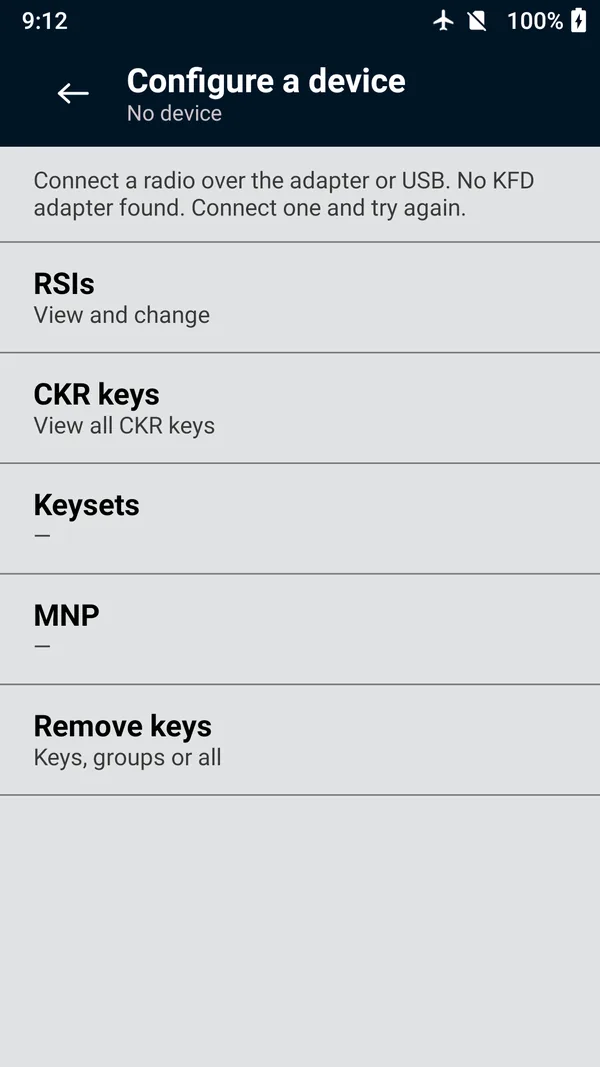
Configure a device reads a connected radio's key management settings as soon as you open it. Connect the radio over three-wire or USB first, then tap Configure a device on the main menu. The subtitle reads Device connected
once the radio has answered.
| Row | What you can do |
|---|---|
| RSIs | See the radio's Individual RSI, Group RSI and KMF RSI, and change the individual and KMF RSIs (1 to 9999999). |
| CKR keys | List the keys the radio holds, by reference. |
| Keysets | See the radio's keysets and make another one active. |
| MNP | Set the radio's message number period (2 to 65535). |
| Remove keys | Opens Erase keys. |
 (enlarge)
Change a radio's RSI
Tap RSIs, then Individual RSI or KMF RSI.
Enter the new value in decimal and confirm.
The radio's own RSI and its KMF RSI must differ; the app refuses a value that matches the other one. A radio managed by a KMF normally takes these values from the KMF, so change them only as your system administrator directs.
Activate a keyset
Tap Keysets. The radio's keysets are listed as kset 1, kset 2 and so on, with the active one marked.
Tap the keyset to make active. The result reads
Keyset 2 is now active.
If the radio reports no keysets, load keys first, or read its CKR keys.
Set the MNP
Tap MNP, enter the message number period from 2 to 65535 and confirm. Use the value your KMF administrator gives you.
CKR keys
Tap CKR keys, then Read the target. The radio reports each key by its CKR, key ID, algorithm and keyset. A radio reports key references and metadata, never key values, so this list is safe to show.
Every change you make here is written to the audit log.