Starting the app and the main menu
What you see when the unit starts, how the PIN works, and a tour of the main menu and the connection bar at the bottom of it.
KFDPro opens straight into its app. There is no other launcher on the handset. Wake the unit and the app is there. (With the standalone kit, open KFDPro from your device's app list.)
The first start
Terms of use. Read them to the end, then tap I accept these terms. The button stays inactive until you have scrolled to the end (
Scroll to the end to accept.
). If you tap I do not accept, the app showsThe keyloader is closed
; the app is the unit's home screen, so it stays there until you tap Read the terms again and accept.License check. Each complete unit ships licensed, so you don't see this step unless something is wrong with the license. With the standalone kit it is the normal first stop until you activate. Either way the app shows
Licensing required
with the reason, the two values that identify the unit (Device id and APK certificate) and a button to Open Licensing. See Licensing.Notice. Only if the logon banner is switched on: your organization's notice, with a single Continue button.
PIN. Only if a PIN is set:
Enter your PIN to continue
, then Unlock.Splash, then the main menu. While the splash shows, the app connects to its security adapter by itself.
Protecting the app with a PIN
No PIN is set when the unit ships. We recommend setting one: with a PIN, nobody can open the app, and so reach the stored keys, without it.
Open Settings › Security › Set a PIN.
Enter 4 to 8 digits on the keypad and tap Next, then enter them again and tap Confirm.
From then on the app asks for the PIN every time it starts. A Log out row appears at the bottom of the main menu: tap it to lock the app when you put the unit down.
After five wrong entries the PIN screen pauses for 30 seconds (Too many attempts. Try again in 30s.
). Each further wrong entry doubles the pause, up to 5 minutes. To change or remove the PIN, use Change the PIN or Remove the PIN under Settings › Security; removing it asks for the current PIN first. A logon banner can be shown before the PIN.
Caution
Keep a record of your PIN in line with your organization's policy. If it is forgotten, contact support; we can't read it back from the unit.
The main menu
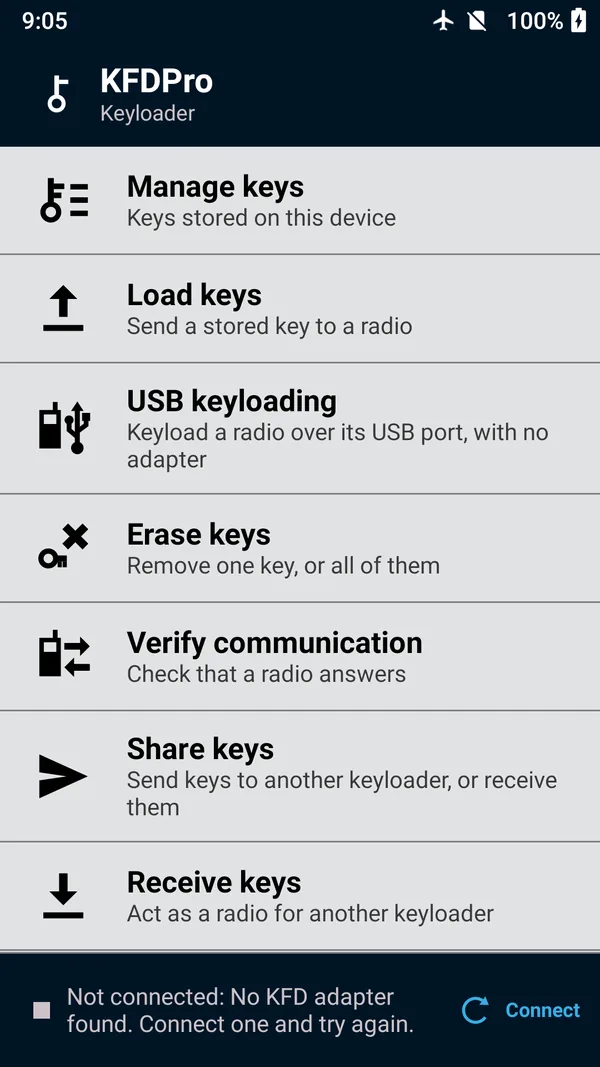
Every operation is one tap from the main menu. Scroll the list to see all of it.
| Row | What it does |
|---|---|
| Manage keys | Keys stored on this device |
| Load keys | Send a stored key to a radio |
| USB keyloading | Keyload a radio over its USB port, with no adapter |
| Erase keys | Remove one key, or all of them |
| Verify communication | Check that a radio answers |
| Share keys | Send keys to another keyloader, or receive them |
| Receive keys | Act as a radio for another keyloader |
| Configure a device | RSIs, keysets, MNP, and remove keys |
| Store & forward | Receive jobs from a KMF and deliver them to radios |
| Radio authentication | Provision radios with authentication keys |
| Tactical OTAR | Rekey a group of radios over the air |
| Audit log | What this keyloader has done |
| Settings | Adapter and appearance |
| Log out | Lock the keyloader. Shown only when a PIN is set |
Some rows show a count when there is work waiting, such as 3 jobs received from KMF
or the number of radio key pairs still to send to the AuC.
 (enlarge)
The connection bar
The bar at the bottom of the main menu tells you what the unit is connected to.
| It says | Meaning |
|---|---|
KFDPro adapter | The security adapter is connected and ready for three-wire keyloading. |
Connecting… | The app is connecting to the adapter. It does this by itself when it starts. |
Over USB — radio at … | A radio is connected over USB. Operations such as Load keys go to that radio over USB until you disconnect it. |
Not connected: No KFD adapter found. | The app can't reach its adapter. Tap Connect. If the message stays, see No KFD adapter found. |
The button on the right of the bar reads Connect or Reconnect; with a USB radio connected it reads Disconnect.
Entering values
Key values, IDs and numbers are typed on the app's own keypad, which appears at the bottom of the screen with Clear and a backspace key; in the key editor, ▲ ▼ above it move between fields. The handset's standard keyboard never sees key material. Names are typed on the standard keyboard.
Anything that erases keys asks you to confirm by swiping across a bar rather than tapping, so it can't happen by accident.