Load keys over the three-wire interface
Send one key, several keys, or a whole key group to a radio through the Hirose cable and the radio's keyload adapter.
You need
- The keys stored on the unit (see Managing keys)
- The radio's keyload adapter and a male-to-male Hirose 6-pin cable
- The radio, charged and turned on
Load keys
Connect the radio as described in Connecting to a radio. If a radio is also connected over USB, disconnect it first; otherwise the keys go to the USB radio.
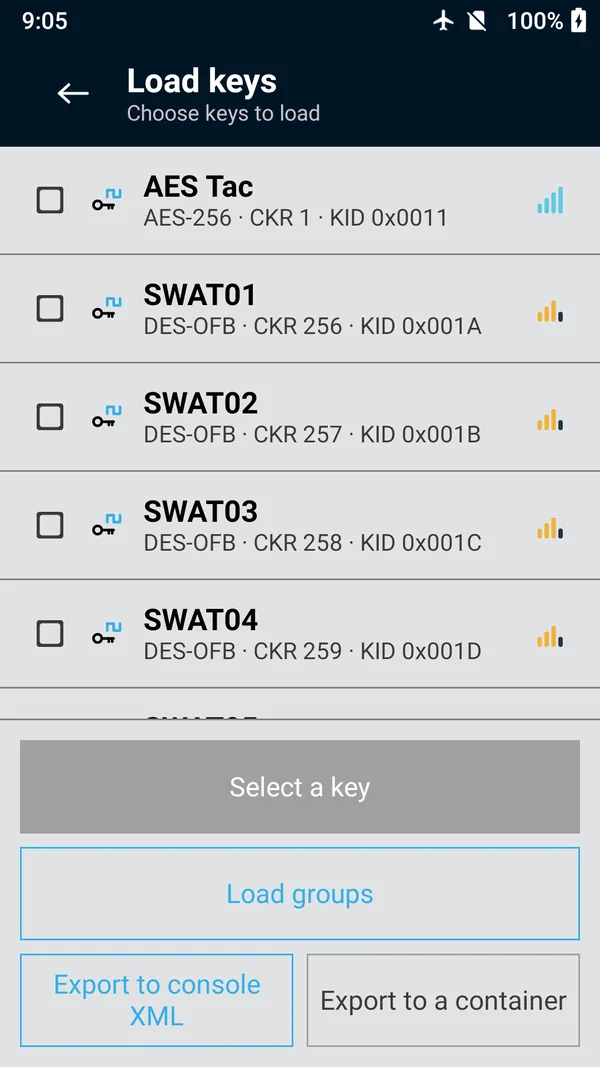
On the main menu, tap Load keys. Every stored key is listed with its algorithm, CKR and key ID; the sort button at the top right orders them by name, CKR, key ID or type, and the subtitle says which.
Tick the keys to send. The button at the bottom changes from Select a key to Load 1 key(s), Load 2 key(s) and so on.
Tap the Load button. The app lists what it is about to send; check it, then tap Load to send or Cancel to stop.
Wait for the result. The progress reads
Contacting the radio…
, thenWaiting for the acknowledgement…
. Don't disconnect the cable while it runs.
 (enlarge)
Load a key group
A group sends a set of keys you load together often, in one step.
On the Load keys screen, tap Load groups.
Tap the group. It loads at once, with no second confirmation.
To make a group, see Key groups.
Read the result
The result names every key and what the radio said about it.
| Result | Meaning |
|---|---|
Keys loaded | The radio accepted every key: 3 key(s) loaded., then one line per key, with its name, CKR and key ID, ending in accepted. |
Load incomplete | Some keys were refused, for example 2 of 3 keys loaded; 1 refused.The refused key's line ends in refused: …with the radio's reason. See What a radio's refusal means. |
Load failed | Nothing was loaded because the radio could not be reached. See Three-wire problems. |
filed as …, not … | Shown under a key's line when the radio stored it under a different algorithm from the one you sent. Check the key's algorithm in Manage keys. |
Every load is written to the audit log. After a load, the app quietly reads the radio's key list again, so CKR keys and Erase keys show what it now holds.
Keys that can't be loaded
A key stored without a value (for example, one you created as a placeholder) is marked cannot be loaded
. If you tick it, the app stops before sending anything. Give it a value in Manage keys, or clear its tick.
Keys that clash
A radio holds one key per CKR, and picks a key by its key ID and algorithm. If two ticked keys share a CKR, or share a key ID and algorithm with different values, the app stops before sending anything, with Nothing was loaded
and the two keys named. Clear the tick on one of them, or change its CKR or key ID in Manage keys.
Tips
- Before a large load, use Verify communication to confirm the cable and adapter are good.
- A TEK and the KEK that protects it can go in the same load; each gets its own result.
- The keyloader identifies itself to the radio with its own RSI (Settings › Keyloader RSI). You rarely need to change it; see Keyloader identity.