Share and receive keys between keyloaders
Send keys from this unit to another keyloader, or let another keyloader send keys to this one, over the key fill interface.
Keyloaders pass keys to each other over the same key fill interface they use with radios: one sends, and the other acts as a radio and receives.
Share keys
Connect the two keyloaders' key fill ports.
Put the other keyloader into its receive mode. If it is a KFDPro, use Receive keys on it.
On this unit, tap Share keys on the main menu and choose what to send:
- Share all sends every key stored here. You confirm first (
Share all keys
, then Share). - Share keys sends the keys ticked on the Load keys screen, at once. Tick them there first.
- Under Groups, tap a group to share its keys. You confirm first (
Share group
, then Share).
- Share all sends every key stored here. You confirm first (
Read the result: each key reports whether the other keyloader accepted it.
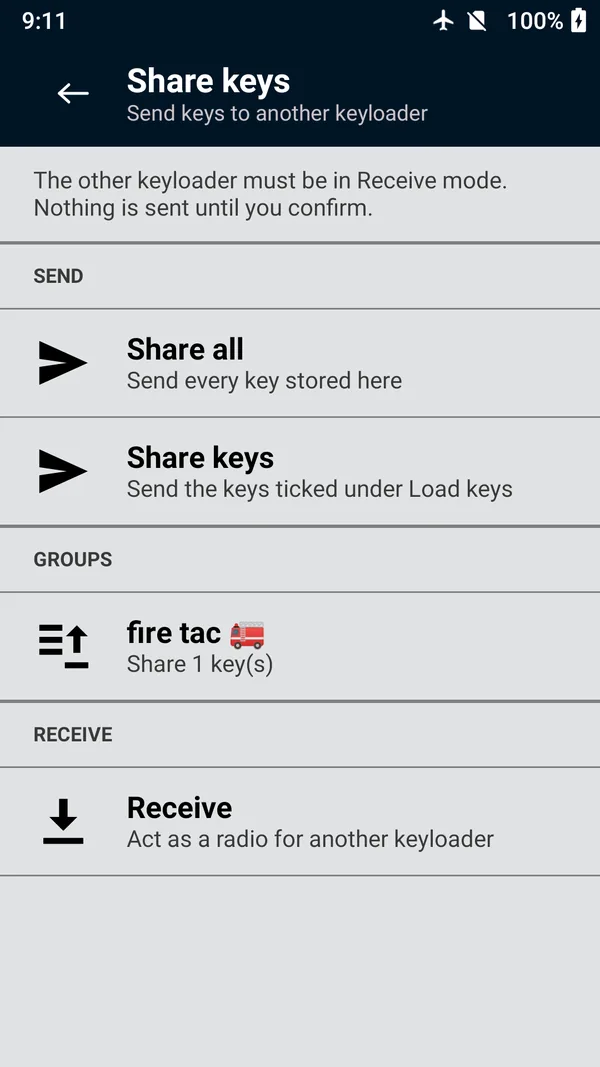 (enlarge)
Receive keys
In receive mode the unit answers the keyload handshake as if it were a radio, so another keyloader can send keys to it. Receiving uses the three-wire port.
Connect the other keyloader to this unit's Hirose port.
On the main menu, tap Receive keys, then Start receiving. The State reads
Receiving
.Send the keys from the other keyloader. The session log lists each key as it arrives.
Tap Stop receiving when done. Leaving the screen also stops it.
Received keys are named after their CKR, written in hex: a key at CKR 47 is stored as Received Key 002F
. To rename one, tap it in Manage keys and change its name. If the adapter isn't connected, the app says Cannot receive
: No KFD adapter is connected. Connect one and try again.
Both sharing and receiving are recorded in the audit log.