Managing keys and key groups
Add, generate, replace and delete the keys stored on the unit, add a batch of keys at once, and gather keys into groups you load together.
Keys live in an encrypted key store on the unit, sealed by a key held in the handset's hardware keystore. Open Manage keys from the main menu to see and change them.
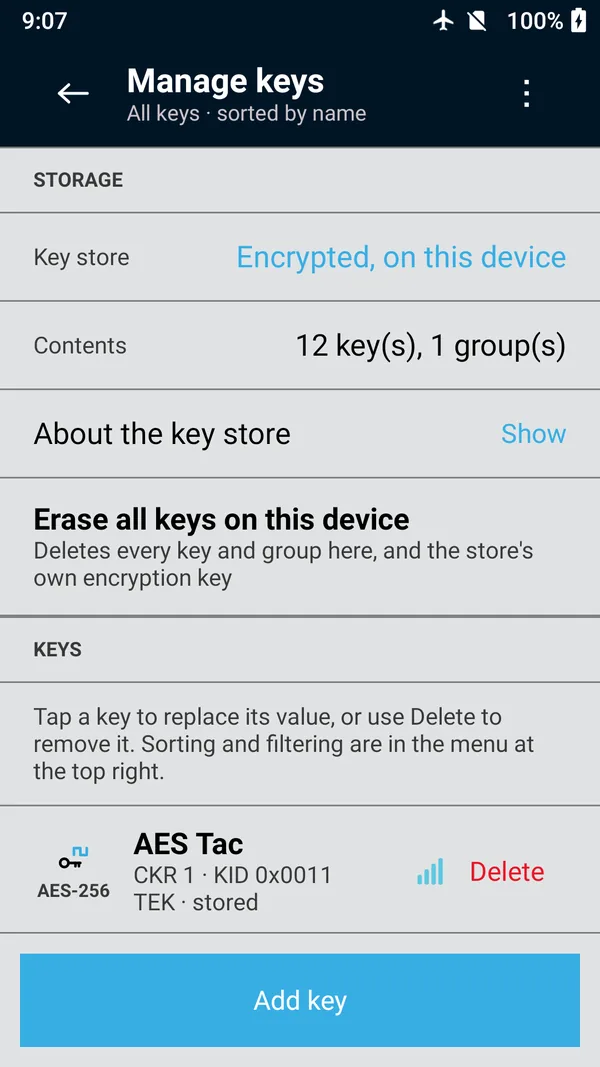
The Manage keys screen
- A line under the title says how many keys and groups are stored; the store is encrypted on the unit. If the store cannot be read, a Storage section says so and offers the only two things you can do about it.
- Keys lists every stored key with its name, CKR, key ID and type, and its algorithm on a colored tag: green for AES-256, teal for AES-128, amber for DES-OFB and DES-XL, red for ADP. Tap a key to replace its value; tap Delete to remove it. Keys a KMF delivers in store and forward are stored here too.
- The menu at the top right holds Add new key, Add multiple keys, Sort by (Name, CKR ID, Key ID or Key type) and Filter (All keys, TEK keys only, KEK keys only or Keys with no value). The screen's subtitle shows the filter and sort in use.
- Further down: Manage groups, and the key container import and export.
A small bar badge beside each key rates its algorithm: current (AES), legacy (DES-OFB, DES-XL) or weak (ADP/RC4).
 (enlarge)
Add a key
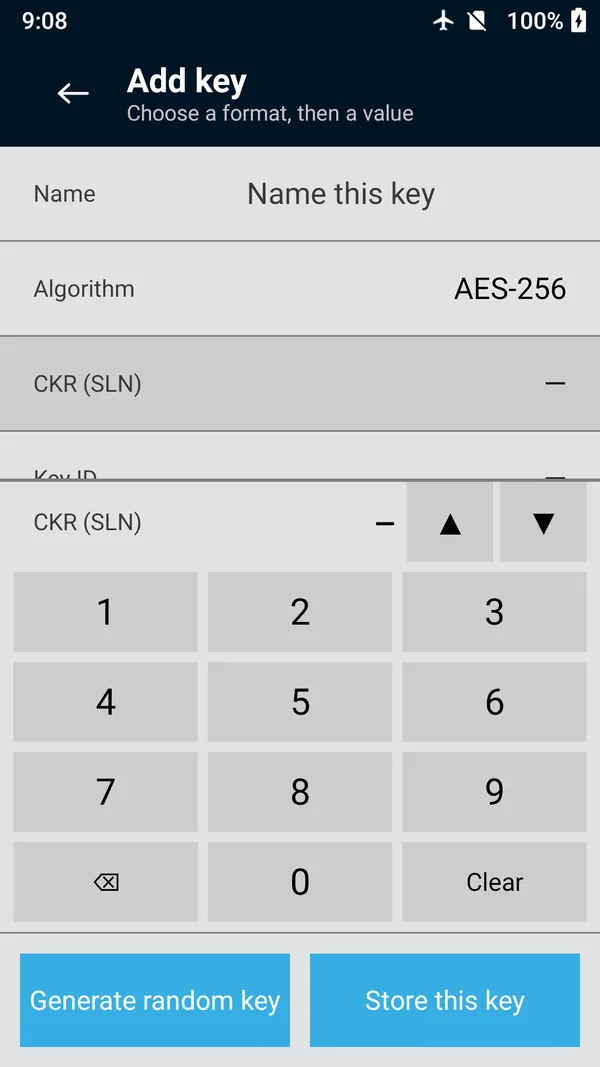
In Manage keys, tap Add key.
Name: a label up to 48 characters, typed on the standard keyboard.
Algorithm: choose it first; it sets the key length. See the table below.
Key type: tap to switch between TEK (traffic encryption key) and KEK (protects other keys).
CKR (SLN): the key's reference number in the radio. The next free number is filled in for you. A TEK uses 1 to 4095; a KEK uses 61440 to 65535.
Key ID: 1 to 4 hex digits (0 to FFFF), as your key plan gives it.
Key material: type the value in hex on the app's keypad, or tap Generate random key to have the unit make one.
Tap Store this key.
 (enlarge)
| Algorithm | ALGID | Key length | Rating |
|---|---|---|---|
| AES-256 | 0x84 | 32 bytes (64 hex digits) | Current |
| AES-128 | 0x85 | 16 bytes (32 hex digits) | Current |
| DES-OFB | 0x81 | 8 bytes (16 hex digits), odd parity checked | Legacy |
| DES-XL | 0x9F | 8 bytes (16 hex digits), odd parity checked | Legacy |
| ADP/RC4 | 0xAA | 5 bytes (10 hex digits) | Weak |
Algorithms you have added yourself appear in the same list. See Custom algorithms.
Warnings when saving
The app checks every key before storing it and stops with Cannot save this key
if something is wrong: a missing name or algorithm, a CKR outside its range, a value of the wrong length (AES-256 needs 32 bytes (64 hex digits)…
), or a DES key with bad parity (Key parity invalid
). It asks you to confirm before saving a value it considers weak or easily guessed, or when the CKR already holds another key (…saving replaces it.
).
Replace a key's value
In Manage keys, tap the key. The Update key screen opens.
Enter or generate the new value, then tap Update key.
Show reveals a key's value on screen. For keys already stored it works only while View stored key material is switched on, and it asks for your PIN each time.
Add several keys at once
For a run of keys with consecutive CKRs and key IDs, such as a tactical set:
Open the menu at the top right and tap Add multiple keys.
Set a Name prefix (for example TACTICAL), the number of Keys (1 to 20), the Algorithm, the Key type, the First CKR (SLN) and the First key ID.
Tap Add 8 key(s) (the number matches your count). The unit generates a random value for each key and numbers them in order.
Delete a key
In Manage keys, tap Delete beside the key.
Swipe across Delete key to confirm.
A key used by a Tactical OTAR group can't be deleted until it is removed from the group. To delete every key and group on the unit, use Erase all keys on this device at the bottom of Manage keys and swipe Erase the store. Nothing on the unit keeps a backup: export a key container first if you may need the keys again.
Key groups
A group is a named set of stored keys that you load, or share, in one step.
In Manage keys, tap Manage groups, then Add a group.
Enter a Group name and tick the keys that belong to it.
Tap Create group.
To change a group, tap it, adjust the ticks and tap Save group. Deleting a group keeps its keys. Load a group from Load keys › Load groups, or share it from Share keys.