Store and forward with a KMF
Collect the rekey jobs your Key Management Facility has queued for your radios, deliver them at each radio, and take the radios' answers back to the KMF.
In store and forward, KFDPro stands in for the over-the-air path: it collects the jobs a KMF has queued for your radios, carries them to each radio, and brings the radios' answers back so the KMF's records stay current.
Beta
Store and forward is built to the relevant TIA standard as closely as we can make it, and it is still being tested against more KMF setups. We have tested it against a Motorola ASTRO 25 KMF, releases R10.00 and R10.02, with jobs delivered and answered on APX radios over three-wire and USB. Check it on your own system before you rely on it in the field.
- Your KMF
- Wired Ethernet · jobs in, answers back
- KFDPro
- Hirose cable or USB · jobs delivered
- Your radios
You need
- An Ethernet patch cable, and a wired network from which the KMF can be reached. The unit's Ethernet port takes its address from the network by DHCP; see Network
- From your KMF administrator: the KMF's IP address and port, the KMF RSI, the RSI of this keyloader's KVL record, and the UKEK issued for it
- The radios' keyload adapter and Hirose cable, or their USB programming cables
Set up the KMF connection (once)
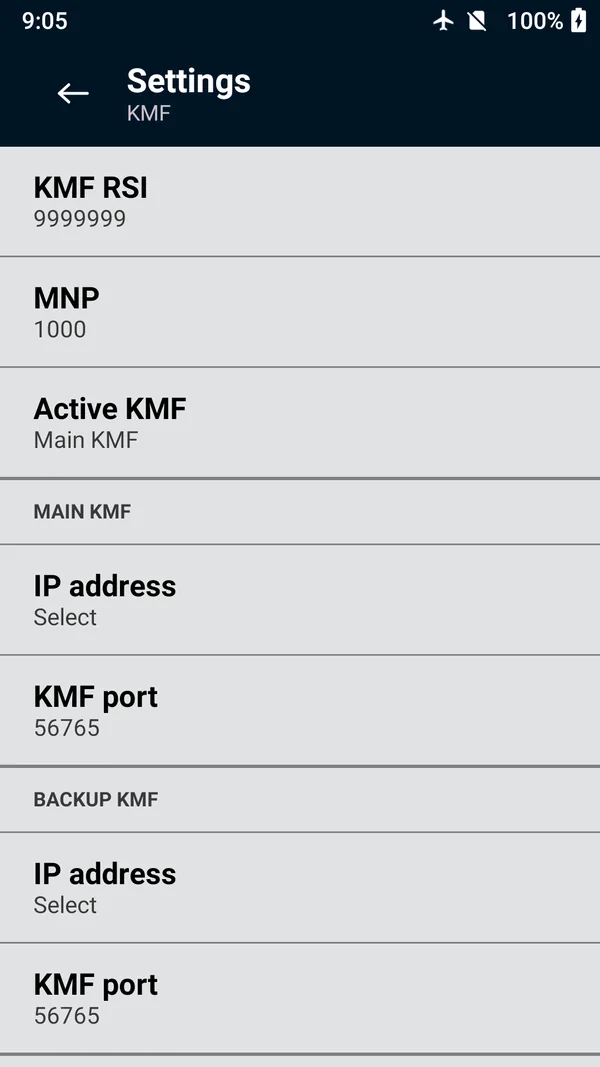
Open Settings › KMF.
Set KMF RSI to the KMF's RSI (default 9999999). The unit accepts jobs only from the KMF with this RSI.
Set MNP if your administrator gives you one (default 1000).
Under Main KMF, set the IP address and the KMF port (default 56765). Add a Backup KMF if you have one, and choose which to use with Active KMF.
Tap UKEKs and enter the UKEK your administrator issued, for its algorithm (AES-256, DES-OFB or DES-XL), on the app's keypad.
Open Settings › Keyloader RSI and check the RSI matches this unit's KVL record in the KMF. Change it if needed.
 (enlarge)
Note
Changing the KMF RSI removes any jobs already received. The UKEK must match the one in this unit's KVL record at the KMF; if the unit is ever compromised, enter new UKEKs both here and at the KMF.
1. Collect jobs from the KMF
Connect the unit's Ethernet port to the network.
On the main menu, tap Store & forward, then Connect to KMF. If the row says to set the KMF address or a UKEK first, finish the set-up above. The KVL to KMF screen starts the session by itself and moves through Connect, Send, Receive and Process to Complete; each step reads Connected, Sent, Received, Processed and Completed as it finishes.
Tap Done. Received jobs lists each radio the KMF sent jobs for, by RSI, with how many jobs it holds. Keys the KMF delivered for this keyloader itself are stored at once and appear in Manage keys. Remove all jobs at the bottom discards everything received.
2. Forward the jobs to each radio
Connect a radio over three-wire or USB.
In Store & forward, tap Forward to radio. The unit reads the radio's RSI and delivers the jobs held for it.
Repeat for each radio. Received jobs shows each radio as answered, or not yet delivered.
The result is Radio updated
, or Update incomplete
when a job didn't go through at the radio; connect to the KMF, which reports the details. If the radio's RSI doesn't match any job, the app says No updates for this radio
and names both RSIs. Radio has already been updated
means its jobs were delivered earlier.
3. Report back to the KMF
Tap Connect to KMF again. The radios' answers are uploaded, and the KMF marks each radio as updated. Any new jobs come down in the same session.
Reaching a KMF from the field
The unit connects over wired Ethernet only. It has no VPN of its own, and connections over RS-232 or a dial-up modem are not offered. A VPN on a travel router works, because the unit just sees a wired network.
The standalone kit has the same Ethernet port and works the same way, on Android devices that support wired networks.
Problems connecting? See KMF problems.